A 3D office you can watch
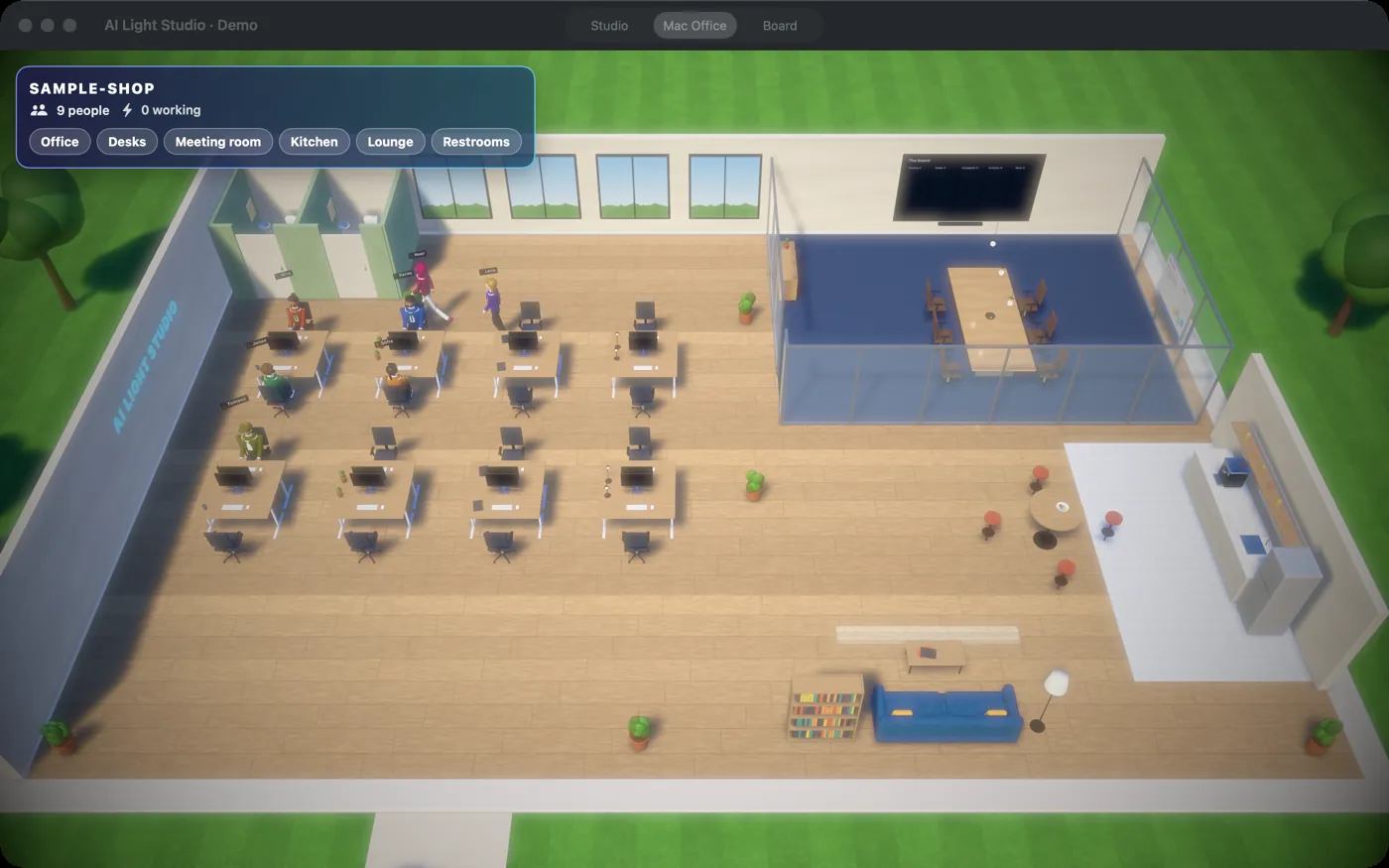
Each employee is a character. Their screen shows their live console, and you can follow anyone from their desk, the camera or above.
AI Light Studio runs a team of AI employees on your repository. Each one has a role, a desk and a board of tickets, and you can watch them work, hold meetings and review what they did in a 3D office on your Mac.
Needs macOS 15 and Apple silicon. Employees run on your own API keys or a local model.
The office, the board, meetings and the review screen, from the app itself.
Tickets move across a board, people talk in meetings, and every change waits for your review before it goes anywhere.
Each employee is a character. Their screen shows their live console, and you can follow anyone from their desk, the camera or above.
Backlog, Ready, In progress, In review and Done. Each ticket gets its own git worktree and branch, so work stays separate until you merge it.
Kick-offs, standups and design reviews with the team at the table. Each employee has a voice that is generated on your Mac, offline.
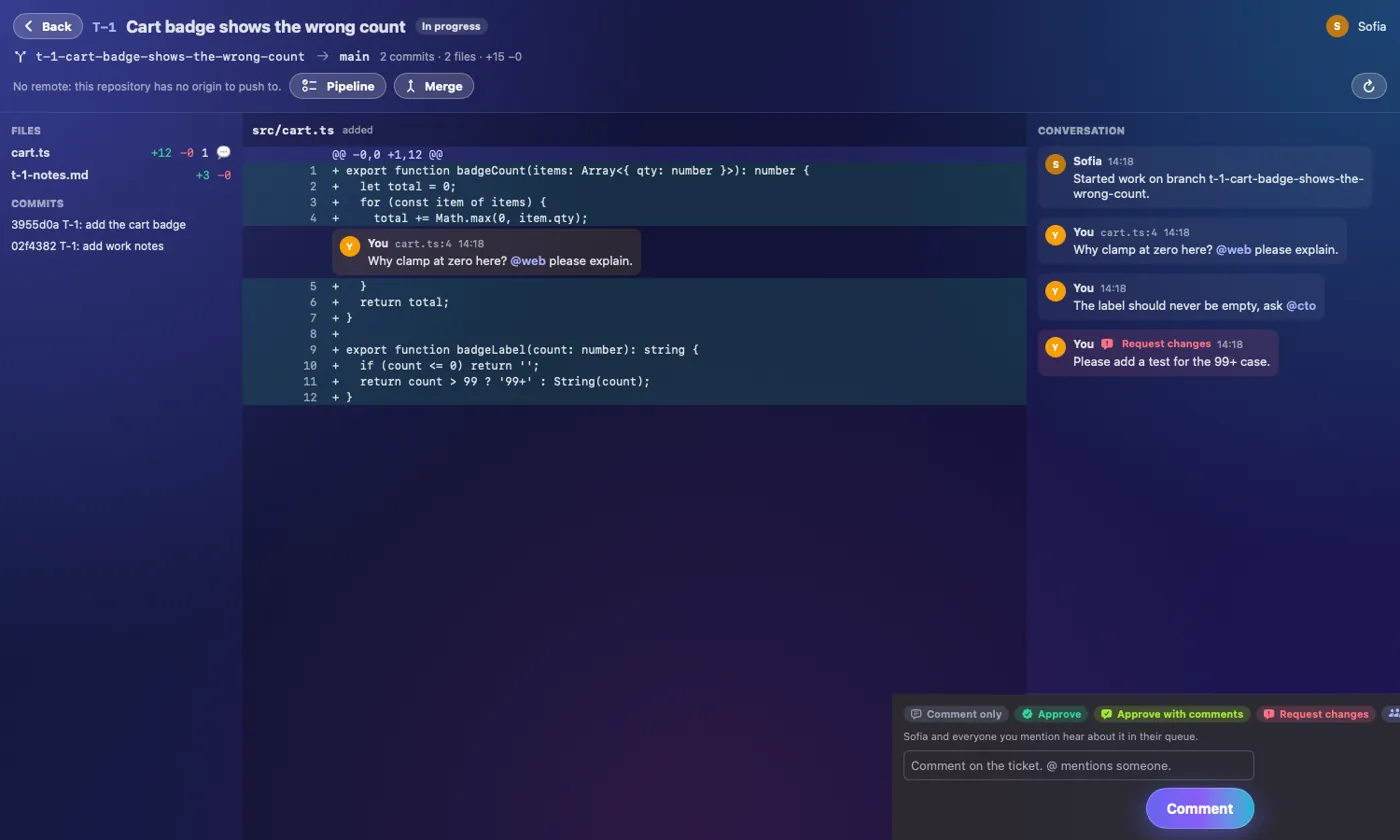
See the branch, its commits and the diff file by file. Comment on any line, mention a teammate, approve or request changes.
Bring your own API keys for Anthropic, OpenAI, Gemini and other providers. Keys are stored encrypted in the project folder.
Run employees on a model on your Mac through llama.cpp, with no API bill. It is slower and less capable than cloud models, so it is a fallback, not the default.
Pick a project, give the team work, and decide what gets published.
Point the app at a project folder. The team reads it and agrees what comes first, then proposes tickets for you to keep or drop.
Each employee works on a ticket in its own branch and reports back. Watch the console, steer them, or let autopilot move through the board.
Open a draft pull request, check the pipeline and merge after your approval. Employees cannot push or publish on their own.
The workflow screen keeps each ticket's branch, commits, diff and conversation in one place.
Download it when the Mac build is ready, and start with the demo team on a sample project.
Download coming soon